I had a problem with my logo. It was AI-generated — looked great when the image generator spat it out, sharp and clean at the resolution I was given. The trouble started the moment I tried to use it.
Put it on the website header at 200px wide? Fine. Use it as a favicon at 32px? Fine. But the second I zoomed in — on a pitch deck, on a merch mockup, on a hero image — it fell apart. The edges went soft. The curves pixelated. The text started looking like it had been through a fax machine.
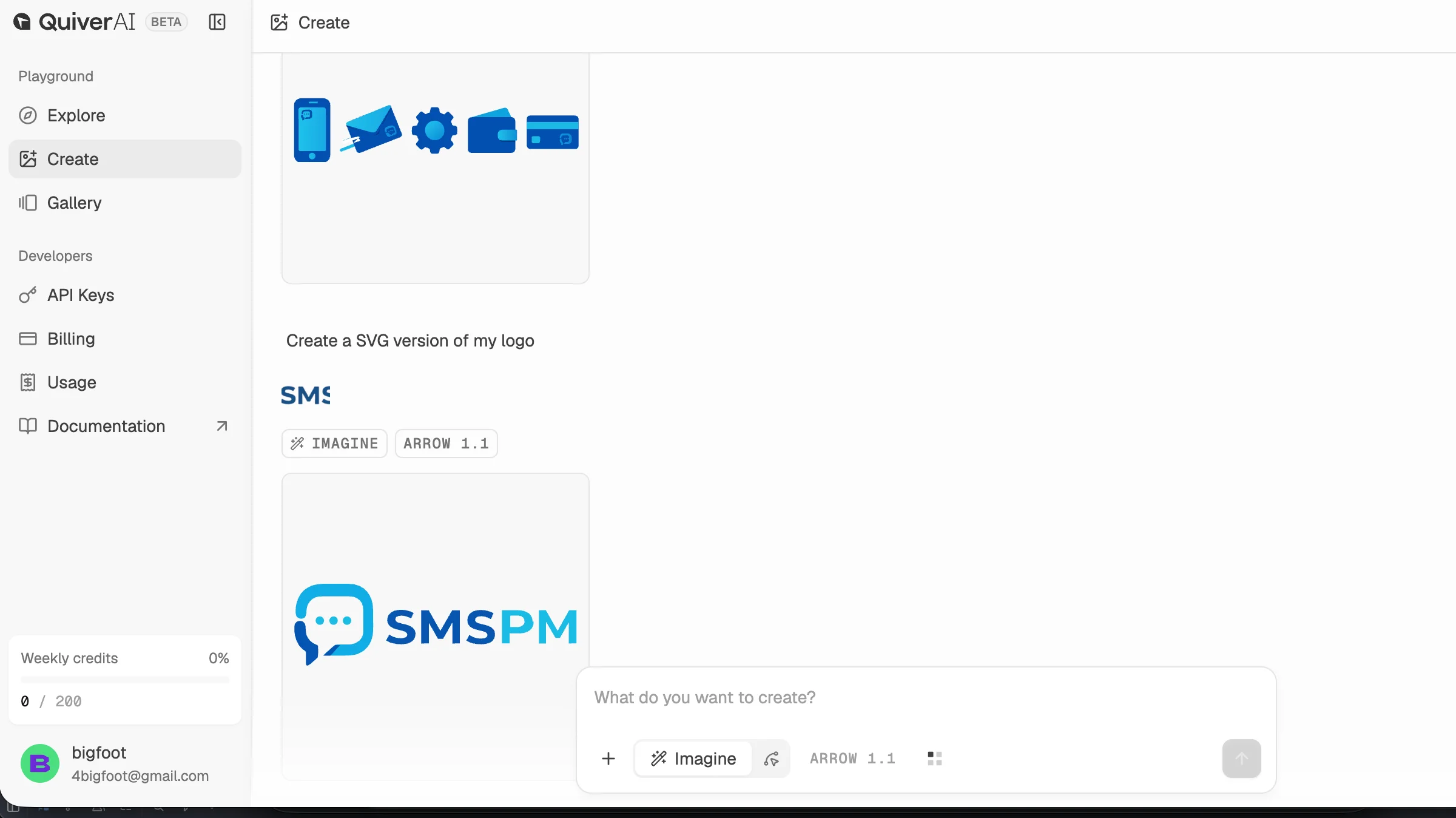
If you’ve ever had an AI-generated logo, you know exactly what I’m talking about. AI image generators don’t hand you vector files. They hand you rasters. A raster is a grid of pixels — fixed-size. A vector is a math description of shapes — scales infinitely. The fix is to vectorize the image — convert the raster to a proper vector format.
So I needed to convert a raster logo into a vector. The old way: open Illustrator, manually trace it with the pen tool, spend 2 hours fighting with bezier handles. The new way I found: one AI site, one line of a prompt, about 30 seconds.
How to vectorize your AI logo with Quiver.ai
I found the site by accident. Someone on Twitter mentioned it. The pitch is simple: it specializes in vector and SVG outputs, unlike Midjourney or DALL-E which are raster-only. If you need to convert a PNG logo to SVG or vectorize a logo without opening Illustrator, this is the tool.
Free plan gives you 200 credits per week. One logo generation costs roughly 20 credits. So you can do about 10 logos a week for free. That’s plenty for personal use and small projects.
Convert your PNG logo to SVG in 30 seconds
I went into the Create section of Quiver, uploaded my logo in its current low-res PNG form, and typed one line:
Create an SVG version of my logo.That’s it. No elaborate prompt engineering. No “highly detailed, vector, scalable.” One line. The model already knows what an SVG is and what logos look like.
Hit generate. Wait about 20-30 seconds. Download the result.
From raster to vector: what the SVG output looks like
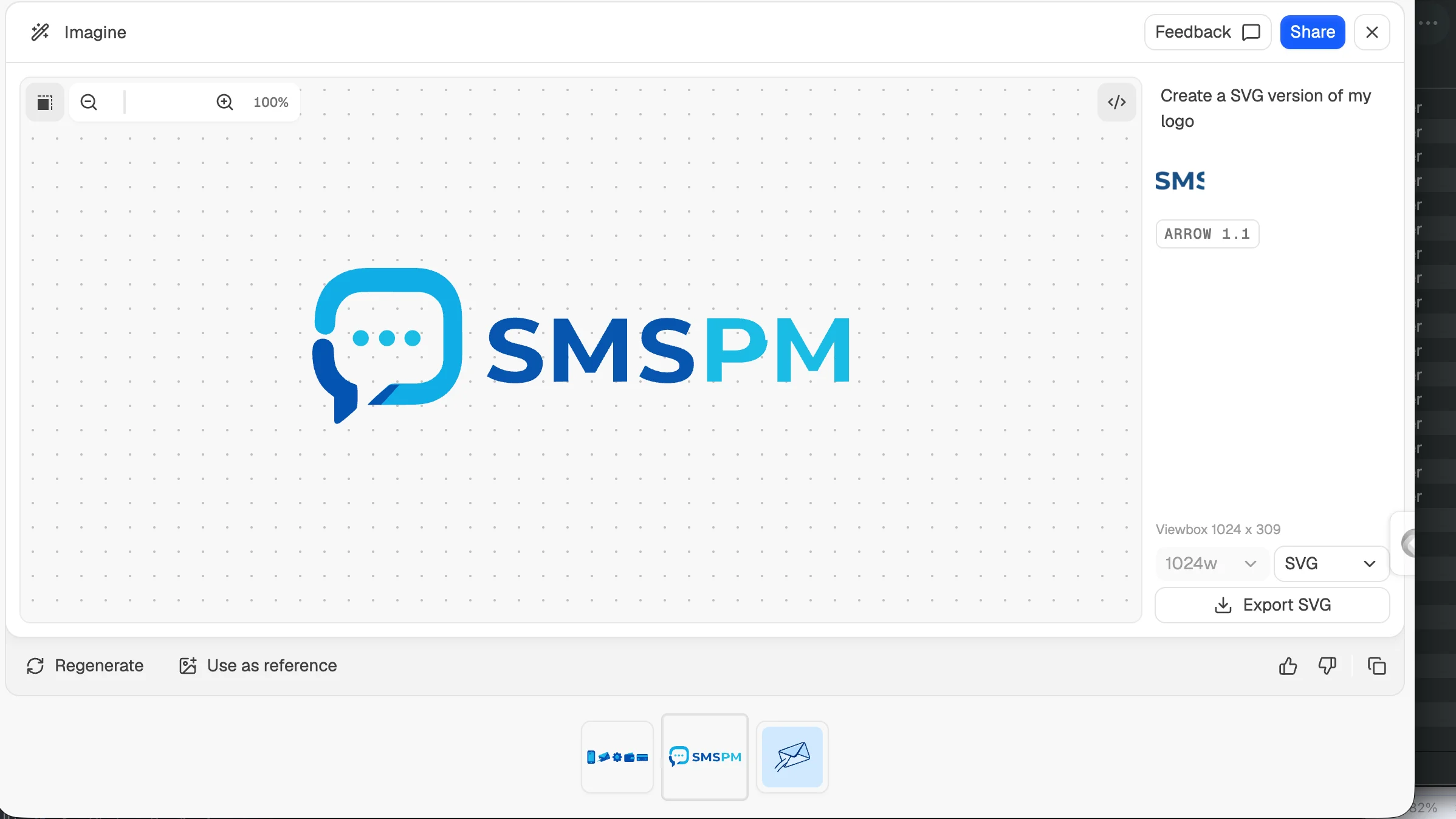
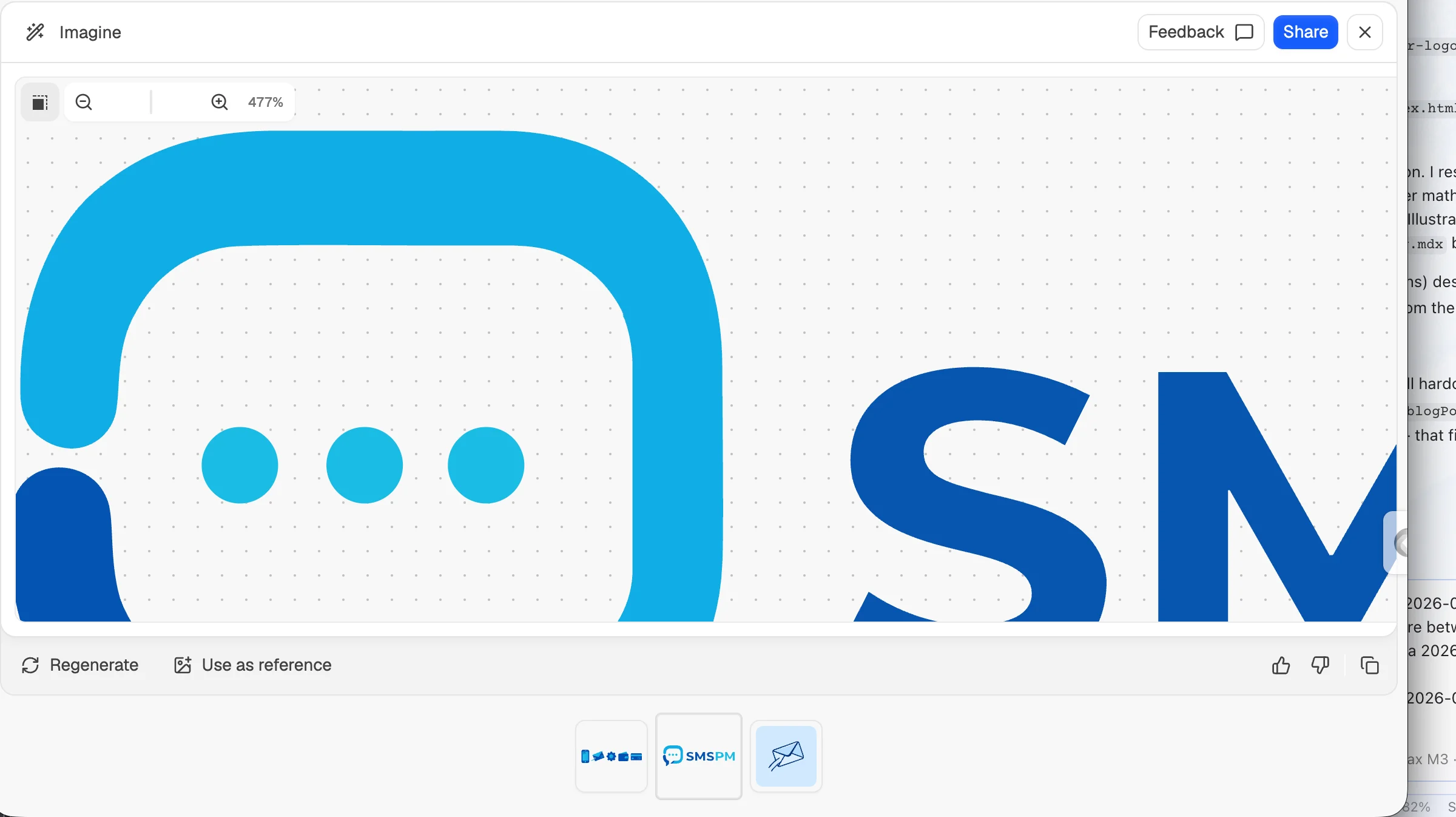
The output is a real SVG file. Open it in a text editor and it’s just XML — a few <path> elements, a <circle>, a <rect>, maybe some <text>. The shapes are described by coordinates, not by pixels. You can scale it to a billboard and the edges stay mathematically perfect. You can scale it down to 16px for a favicon and the curves stay smooth.
That was the moment it clicked for me. I had been fighting with low-res PNGs for months, trying to find higher-quality versions of my own logo, recreating it from scratch in Figma, doing the Illustrator pen-tool dance. One prompt did in 30 seconds what I’d been avoiding for weeks.
What I used it for after
Once I had the SVG, I stopped thinking of my logo as a single file. It became infrastructure:
- Favicon — the SVG scales down to 16×16 cleanly. No more blurry browser tab.
- App icon — exported the SVG to PNG at 1024×1024, then 512, 180, 120, 87, 60, 40. All crisp.
- Merch mockups — T-shirts, mugs, stickers. The print shop accepts SVG, and the result is sharp at any size.
- Dark mode — the SVG is theme-aware. I added
currentColorto the fill and the logo now follows the site’s text color automatically.
The last one is the underrated part. A raster logo is locked to whatever colors the image generator gave you. An SVG can be re-colored with one line of CSS. Want the logo in your brand purple on the homepage, white on the dark-mode footer, black on the invoice? One CSS variable. The raster version would have been 4 separate files.
Why vectorize with AI instead of Illustrator?
I own an Illustrator license. I still used Quiver. Here’s why:
The pen tool is great when you need pixel-perfect control over a complex logo. For “I have an AI-generated raster and I just need a clean vector I can actually use,” the pen tool is overkill. It’s also slow — 30 minutes minimum for a simple mark, hours for anything with text or detail. And the result is a .ai file, not a clean .svg. Anyone you hand it to needs Illustrator or a converter.
The Quiver output is a real, hand-readable SVG. I can edit it in any text editor. I can serve it directly from the site. I can drop it into a Figma frame and adjust one node. I don’t need Adobe anything. It’s the fastest way to vectorize a PNG I’ve found.
If your logo is a complex illustration with many overlapping shapes, fine — use Illustrator. If your logo is a simple mark (the kind AI generators usually produce), the one-prompt method is faster and the output is more useful.
What I’d do differently
I waited too long to do this. For about 6 months I had a low-res PNG on the site that I knew was a problem. I’d put off the fix because the only solution I knew was “open Illustrator and trace it,” and that was a 2-hour task I didn’t want to schedule. The actual fix was a 30-second task I could’ve done on a coffee break.
If your AI-generated logo is doing anything important — site, deck, business cards, merch — and it’s a raster, fix it this week. Convert your PNG to SVG, vectorize the image, and you’ll have a logo you can use anywhere forever.
If you’d like a quick way to audit your own brand assets — logo, color usage, typography consistency across the site — the MastersAtWork Landing Audit tool runs in under 5 minutes and flags the visual issues that hurt conversion. Free, no signup.